
- 전체 카테고리 (238)

| 일 | 월 | 화 | 수 | 목 | 금 | 토 |
|---|---|---|---|---|---|---|
| 1 | 2 | 3 | 4 | 5 | 6 | |
| 7 | 8 | 9 | 10 | 11 | 12 | 13 |
| 14 | 15 | 16 | 17 | 18 | 19 | 20 |
| 21 | 22 | 23 | 24 | 25 | 26 | 27 |
| 28 | 29 | 30 | 31 |
- jwt
- java
- equals
- MSA
- stream
- KEVISS
- select_type
- 테스트 코드
- DDL
- 인덱스
- Spring
- 생성자 주입
- hashcode
- 열 속성
- Test
- jpa
- 필드 주입
- DI
- cache
- 재정의
- 조합
- docker
- StringBuilder
- redis
- Exception
- SQL
- AOP
- static
- VUE
- lambda
- Today
- Total
백엔드 개발자 블로그
6. docker network 본문
1. 컨테이너 네트워크
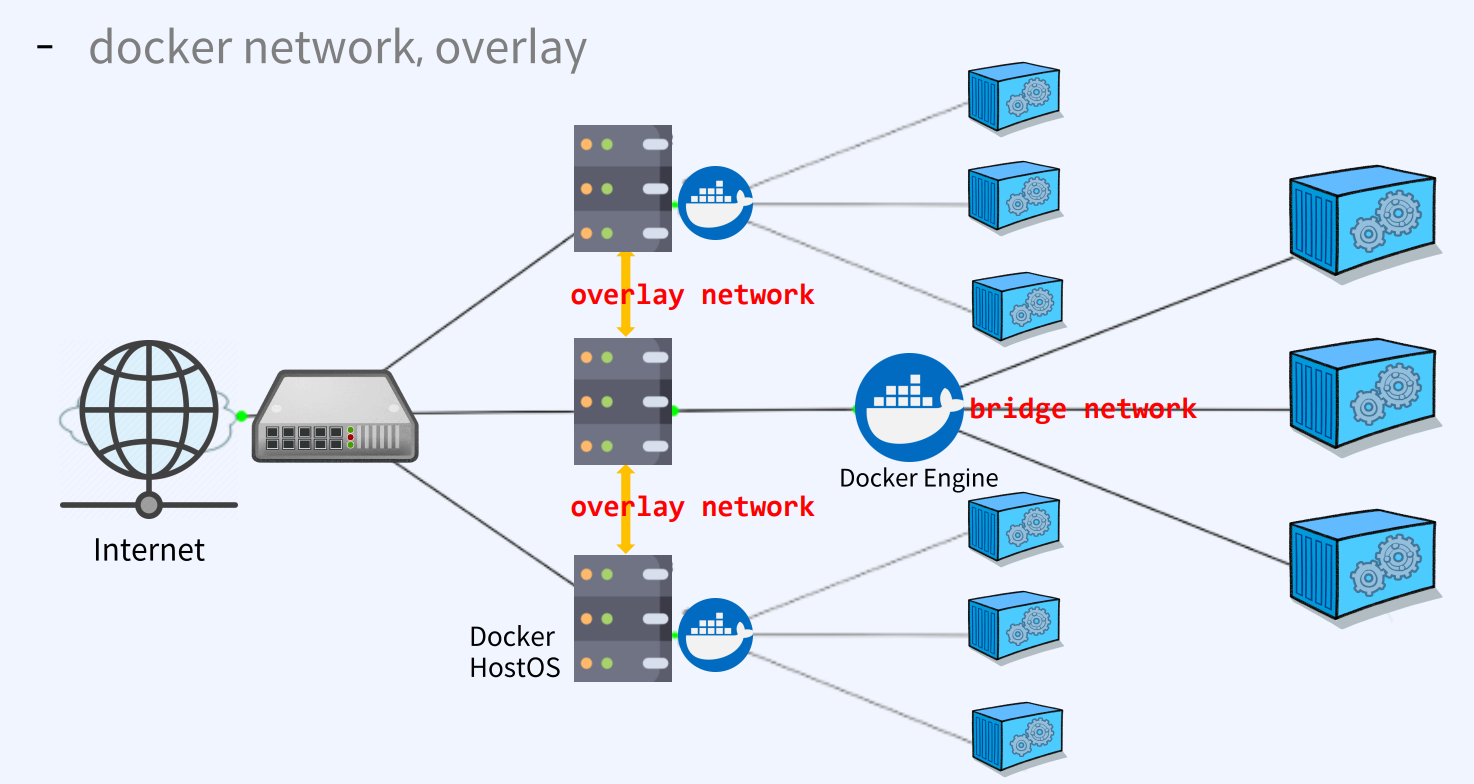
docker network = Linux network
CNM(Container Networking model) 인터페이스 집합 위에 구축하여 OS 및 인프라 스택에 관계없이 동일한 애플리케이션이 환경을 가질 수 있음
리눅스 빌등 블록 안에 도커 네트워크가 포함됨
리눅스 브릿지 : 커널 내부의 물리적 스위치를 가상으로 구현한 OSI Layer 2 Device다. / 트래픽을 검사하여 동적으로 학습되는 MAC 주소를 기반으로 트래픽을 전달
network namespace
CNM : 설계 문
Libnetwork : 표준 구현체
Bridge driver
Overlay driver
MACvlan driver
veth
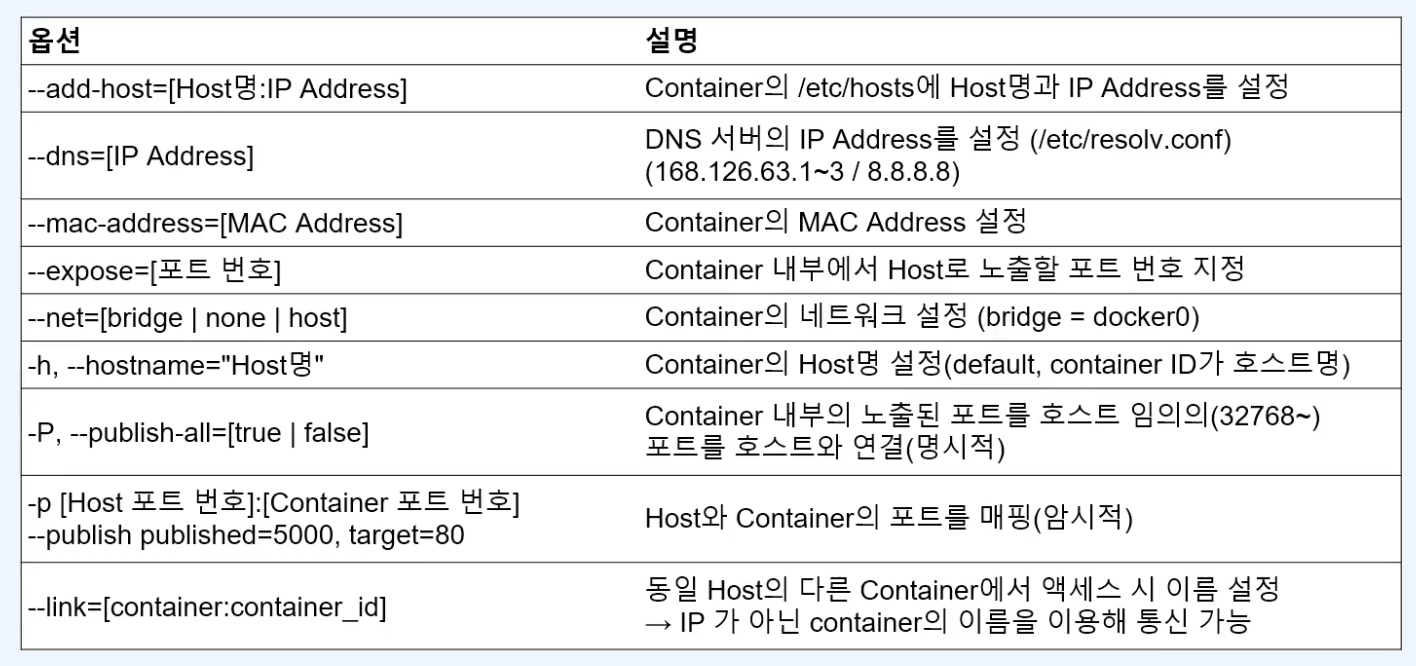
옵션
bridge 는 같은 host에 있는 네트워크 연결
docker swarm 은 다른 host 간에 네트워크 연결
2. 사용자 정의 네트워크
1. 네트워크 생성
# 네트워크 생성
docker network create -d bridge [네트워크이름]

# 참고) ip 대역 지정도 가능
~$ docker network create \
> --driver bridge \
> --subnet 172.30.1.0/24 \ → CIDR 표기만 설정 가능, 255.255.255.0 과 같음.
> --ip-range 172.30.1.0/24 \ → subnet 이하, IP 범위 조정 가능.(172.30.1.100/26)
> --gateway 172.30.1.1 \
> vswitch-net
2. 네트워크 조회
# 네트워크 확인
docker network ls
3. 컨테이너 생성 시 bridge 연결
# 컨테이너 생성 + 네트워크 설정
docker run --net=[네트워크이름] -it --name=[컨테이너이름] [이미지이름]

# bridge 확인
brctl show
4. 네트워크 연결 / 해제
# 네트워크에 컨테이너 연결하기
docker network connect [네트워크이름] [컨테이너이름]

# 해제
docker network disconnect [네트워크이름] [컨테이너이름]
3. docker DNS
- libnetwork는 이름으로 컨테이너를 찾을 수 있는 검색 기능을 제공한다.
- --net-alias를 사용하여 DNS 등록이 가능하다.
- 주의점 : 사용자 정의 네트워크를 만들어야 DNS를 만들 수 있다.
DNS 등록 방법
1. 사용자 정의 Bridge network 생성
# 네트워크 생성
$ docker network create [네트워크명]
2. --net-alias를 이용한 targetgroup 생성
# DNS 생성
~$ docker run -d --name=[컨테이너명] --net=[네트워크명] --net-alias=[DNS명] -p 9201:9200 -p
9301:9300 -e "discovery.type=single-node" elasticsearch:7.17.10

~$ docker run -d --name=[컨테이너명] --net=[네트워크명] --net-alias=[DNS명] -p 9202:9200 -p
9302:9300 -e "discovery.type=single-node" elasticsearch:7.17.10
참고) 라운드 로빈 방식으로 응답함
# DNS 호출해보기 라운드로빈 방식으로 응답한다.
{
"name" : "eca69cd10625",
"cluster_name" : "docker-cluster",
"cluster_uuid" : "uP9HrKhjSgylZbKDGEnsNw",
"version" : {
"number" : "7.17.10",
…
},
"tagline" : "You Know, for Search"
}

[root@104c39bda98c /]# curl -s esnet-tg:9200
{
"name" : "26e671cf7be7",
"cluster_name" : "docker-cluster",
"cluster_uuid" : "99PUfxR4SRScfDH40Q1mwg",
"version" : {
"number" : "7.17.10",
…
},
"tagline" : "You Know, for Search"
}
4. 컨테이너 Proxy
Proxy란?
Proxy는 통신을 대리 수행하는 서버
Proxy를 사용하는 이유
Proxy 구성이 없으면 트래픽을 웹서버가 다 받아서 부하가 발생할 수 있다.
Proxy 종류
Proxy 서버의 위치에 따라 구분한다.
1. forward proxy : client와 internet 사이에 있어서 client 정보가 서버에 노출되지 않음

2. reverse proxy : client의 요청을 대신 받아서 전달. client에게 서버 노출 안됨

Proxy 역할
- Load Balancing
- 캐싱 (정적파일, 응답)
- 보안 (특정 사이트 접근 차단, SSL)
- 무중단 배포
구현 방법
- Nginx
- HAproxy : Nginx에는 없는 health check 기능이 있음
- L4 : IP를 이용한 트래픽 전달
- L7 : URI를 이용한 트래픽 전달
5. Nginx를 활용한 컨테이너 proxy
2가지 방법이 존재한다.
1. Host Nginx reverese proxy 구성
1-1. HostOs에 nginx를 설치한다.
# Docker HostOS에 apt를 이용하여 nginx를 설치한다.
~$ sudo apt update
~$ sudo apt -y install nginx

# nginx 버전 확인
~$ sudo nginx -v
nginx version: nginx/1.18.0 (Ubuntu)

# nginx active인지 확인 - port 80을 이미 쓴경우 active가 아닐 수 있다.
~$ sudo systemctl status nginx.service
● nginx.service - A high performance web server and a reverse proxy server
Loaded: loaded (/lib/systemd/system/nginx.service; enabled; vendor preset: enabled)
Active: active (running)

# nginx 페이지 나오는지 확인
~$ curl localhost:80
<!DOCTYPE html>
<html>
<head>
<title>Welcome to nginx!</title>
1-2. nginx.conf 설정해서 reverse proxy으로 변경한다.
localhost를 사용한다.
라운드로빈으로 작동한다.
# nginx.conf 작성
~$ sudo vi /etc/nginx/nginx.conf
events { worker_connections 1024; }
http {
    # List of application servers
    upstream backend-alb {
    server 127.0.0.1:5001;
    server 127.0.0.1:5002;
    server 127.0.0.1:5003;
}
    # Configuration for the server
    server {
        # Running port
        listen 80 default_server;
        # Proxying the connections
        location / {
        	proxy_pass http://backend-alb;
    	}
	}
}

# 재실행
~$ sudo systemctl restart nginx.service
~$ sudo systemctl status nginx.service
2. Nginx container 방법
2-1. Nginx container 설치
# 설치
~$ docker run -d -p 8001:80 --name=proxy-container nginx:1.25.0-alpine
2-2. nginx.conf 작성
host IP를 작성한다.
가중치 추가도 가능하다.
~$ vi nginx.conf
events { worker_connections 1024; }
http {
    upstream backend-alb {
        server 192.168.56.101:5001 weight=60; # 가중치 추가도 가능
        server 192.168.56.101:5002 weight=20;
        server 192.168.56.101:5003 weight=20;

    }
    server {
        listen 80 default_server;
        location / {
        	proxy_pass http://backend-alb;
        }
    }
}
2-3. nginx container로 복사
~$ docker cp nginx.conf proxy-container:/etc/nginx/nginx.conf
2-4. 재시작
~$ docker restart proxy-container6. HAProxy를 활용한 컨테이너 proxy
1. 기본 mode http 방식
1-1. haproxy.cfg 작성
kevin@hostos1:~/fastcampus/ch06$ mkdir conf && cd $_

kevin@hostos1:~/fastcampus/ch06/conf$ vi haproxy.cfg
global
    stats socket /var/run/api.sock user haproxy group haproxy mode 660 level admin expose-fd listeners
    log stdout format raw local0 info
defaults
    mode http
    timeout client 10s
    timeout connect 5s
    timeout server 10s
    timeout http-request 10s
    log global
frontend stats
    bind *:8404
    stats enable
    stats uri /
    stats refresh 10s
    frontend myfrontend
    bind :80
    default_backend webservers
backend webservers
    server s1 echo-web1:8080 check
    server s2 echo-web2:8080 check
    server s3 echo-web3:8080 check
1-2. HAproxy container 구성
# 컨테이너 생성
docker run -d --name=haproxy-container --
net=proxy-net -p 80:80 -p 8404:8404 -v $(pwd):/usr/local/etc/haproxy:ro
haproxytech/haproxy-alpine:2.5
결과물
- hostIP:8404 접근시 HAproxy 통계 정보 확인 가능
- hostIP:80 접근 시 라운드로빈으로 작동함
2. URI 방식1
2-1. haproxy.cfg 작성
kevin@hostos1:~/fastcampus/ch06/conf$ vi haproxy.cfg
global
    stats socket /var/run/api.sock user haproxy group haproxy mode 660 level admin expose-fd listeners
    log stdout format raw local0 info
defaults
	mode http
    timeout client 10s
    timeout connect 5s
    timeout server 10s
    timeout http-request 10s
    log global
frontend stats
    bind *:8404
    stats enable
    stats uri /
    stats refresh 10s
frontend myfrontend
    bind :80
    default_backend webservers
    acl echo-web1 path_beg /echo-web1
    acl echo-web2 path_beg /echo-web2
    acl echo-web3 path_beg /echo-web3
    use_backend echo-web1_backend if echo-web1
    use_backend echo-web2_backend if echo-web2
    use_backend echo-web3_backend if echo-web3
backend webservers
    balance roundrobin
    server s1 echo-web1:8080 check
    server s2 echo-web2:8080 check
    server s3 echo-web3:8080 check
backend echo-web1_backend
    server s1 echo-web1:8080 check
backend echo-web2_backend
    server s2 echo-web2:8080 check
backend echo-web3_backend
    server s3 echo-web3:8080 check
2-2. conatiner 생성
$ docker run -d --name=haproxy-container --
net=proxy-net -p 80:80 -p 8404:8404 -v $(pwd):/usr/local/etc/haproxy:ro
haproxytech/haproxy-alpine:2.5
결과물
- hostIP:8404 접근시 HAproxy 통계 정보 확인 가능
- hostIP:80 접근 시 라운드로빈으로 작동함
- hostIP:80/컨테이너이름 접근 시 해당 컨테이너로 전달
3. URI 방식 2
3-1. haproxy.cfg 작성
$ vi haproxy.cfg
global
    stats socket /var/run/api.sock user haproxy group haproxy mode 660 level admin expose-fd listeners
    log stdout format raw local0 info
defaults
    mode http
    timeout client 10s
    timeout connect 5s
    timeout server 10s
    timeout http-request 10s
    log global
frontend stats
    bind *:8404
    stats enable
    stats uri /
    stats refresh 10s
frontend myfrontend
    bind :80
    default_backend webservers

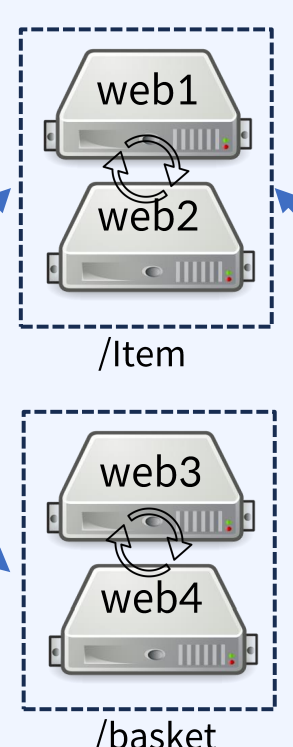
    acl echo-web1-item path_beg /item
    acl echo-web2-item path_beg /item
    acl echo-web3-basket path_beg /basket
    acl echo-web4-basket path_beg /basket

    use_backend echo-web1_backend if echo-web1-item
    use_backend echo-web1_backend if echo-web2-item
    use_backend echo-web2_backend if echo-web3-basket
    use_backend echo-web2_backend if echo-web4-basket

backend webservers
    balance roundrobin
    server s1 echo-web1-item:8080 check
    server s2 echo-web2-item:8080 check
    server s3 echo-web3-basket:8080 check
    server s4 echo-web4-basket:8080 check

backend echo-web1_backend
    server s1 echo-web1-item:8080 check
    server s2 echo-web2-item:8080 check

backend echo-web2_backend
    server s3 echo-web3-basket:8080 check
    server s4 echo-web4-basket:8080 check
3-2. 컨테이너 생성
docker run -d --name=haproxy-container --
net=proxy-net -p 80:80 -p 8404:8404 -v $(pwd):/usr/local/etc/haproxy:ro
haproxytech/haproxy-alpine:2.5
결과물
- hostIP:8404 접근시 HAproxy 통계 정보 확인 가능
- hostIP:80/item 접근 시 컨테이너1,2 라운드로빈방식으로 전달
- hostIP:80/basket 접근 시 컨테이너3,4 라운드로빈방식으로 전달
'CI CD > Docker' 카테고리의 다른 글
| 8. Docker volume (0) | 2025.12.21 |
|---|---|
| 7. 컨테이너 리소스 모니터링과 자원 할당 관리 (0) | 2025.12.20 |
| 5. Docker 컨테이너 CLI (0) | 2025.12.18 |
| 3. Docker Engine update (0) | 2025.12.17 |
| 4. Docker Image 이해 (0) | 2024.05.22 |